Digital implantology is revolutionizing dental practice—streamlining planning, boosting accuracy, and enhancing patient outcomes. But to harness the full power of modern implant planning software, your laptop must meet rigorous technical requirements.
If you’re a practitioner in digital implantology or guided implantology, your laptop’s configuration can dramatically impact your efficiency and precision.
Implant planning software—including Real guide, coDiagnostiX, Blue Sky Plan, Exocad, and others—demands powerful computing resources to process 3D scans, perform segmentation, and visualize treatment plans.
Let’s break down the ideal laptop configuration, and dive into why SSDs, NVIDIA graphics cards, and CUDA support matter for high-quality results.
Let’s breakdown the parts of a laptop and understand in-depth impact of them on our day to day work in radiology.
Processor:
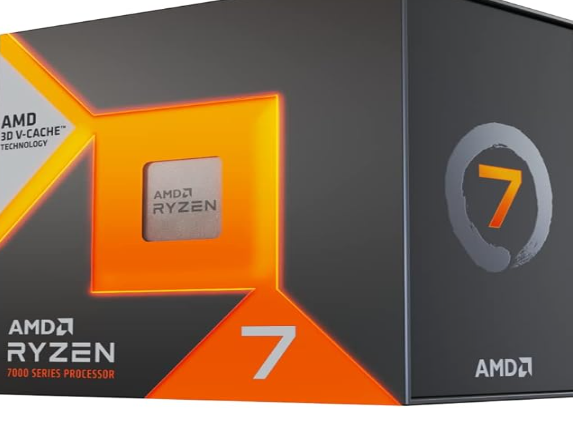
Intel Core i7 or AMD Ryzen 7 (or higher)
These processors offer robust multi-core performance for rapid data computation, essential for handling large 3D files and complex image segmentation.
AMD processors generally offer superior multi-core performance and higher core counts, which is advantageous for highly parallelizable tasks such as 3D rendering and batch image processing in implant planning. Their efficient architecture and advanced technologies like 3D V-Cache allow for robust handling of large CBCT datasets and simultaneous workflow operations, often delivering better productivity for volume-intensive segmentation tasks. Additionally, AMD’s processor designs tend to offer better power efficiency, helping reduce heat generation during prolonged computations.
On the other hand, Intel processors excel in single-threaded performance and offer slightly higher clock speeds, which benefits latency-sensitive and sequential processes common in some segmentation algorithms and real-time rendering protocols. Intel’s Quick Sync technology also accelerates video and imaging codecs, which can improve performance in some medical imaging scenarios. However, Intel’s multi-core performance is generally slightly behind AMD’s in the same price bracket.
Overall, for dental implant software workflows that rely heavily on multi-threaded 3D rendering and segmentation—such as processing large CBCT scans—AMD processors tend to provide a better price-to-performance ratio. But for applications requiring high single-thread speed or specific Intel optimizations, Intel remains competitive. The optimal choice depends on the specific software characteristics and workflow priorities in your clinical or development environment.
RAM:
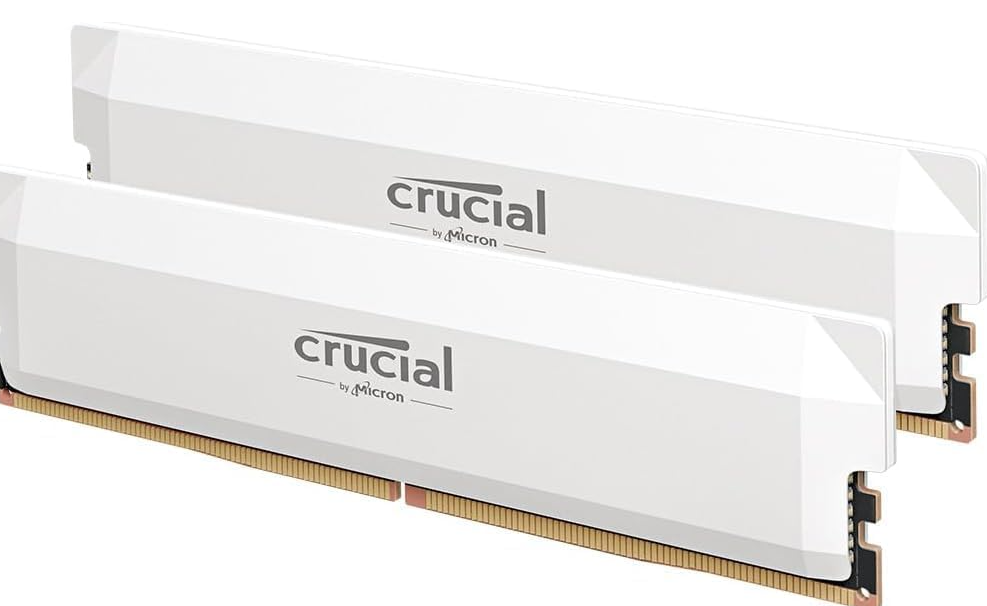
Minimum 16GB (preferably 32GB for heavy multitasking)
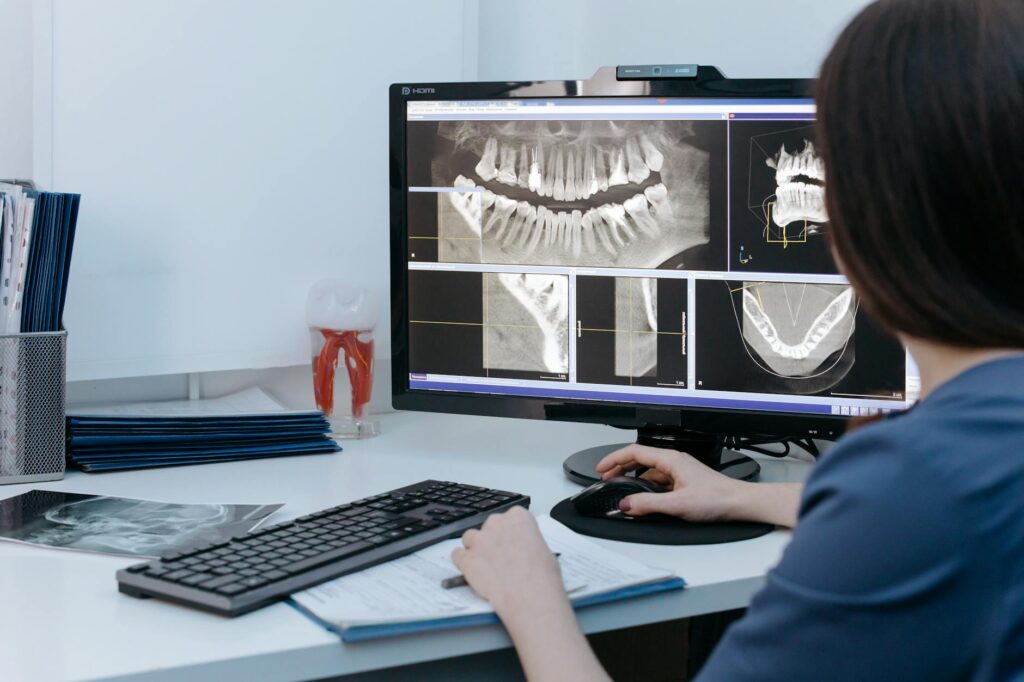
For dental imaging and implant planning applications, a minimum of 16 GB of RAM is generally recommended to ensure smooth processing of large 3D datasets such as CBCT scans and STL files. This amount of memory allows seamless multitasking and efficient execution of complex segmentation and 3D rendering algorithms, which are critical for precise implant planning workflows.
While some basic imaging software may run on 8 GB RAM, advanced implant planning tools—and particularly those using AI-driven automated segmentation—typically require 16 GB or more to avoid lag, software crashes, or incomplete renderings.
For high-volume practices or workflows involving multiple simultaneous cases, upgrading to 32 GB RAM can further enhance speed, stability, and overall performance.
In short, adequate RAM is a key factor in supporting the demanding computational tasks intrinsic to modern digital dentistry workflows.
More RAM enables smoother multitasking and faster manipulation of large patient datasets. Robust CPUs and ample RAM allow for smooth and error-free handling of large CBCT, intraoral scan, and STL files, minimizing the risk of software crashes, freezes, or incomplete rendering.
While these affect user experience and reduce planning mistakes, they don’t, by themselves, directly improve the surgical guide’s intrinsic accuracy.
Storage:
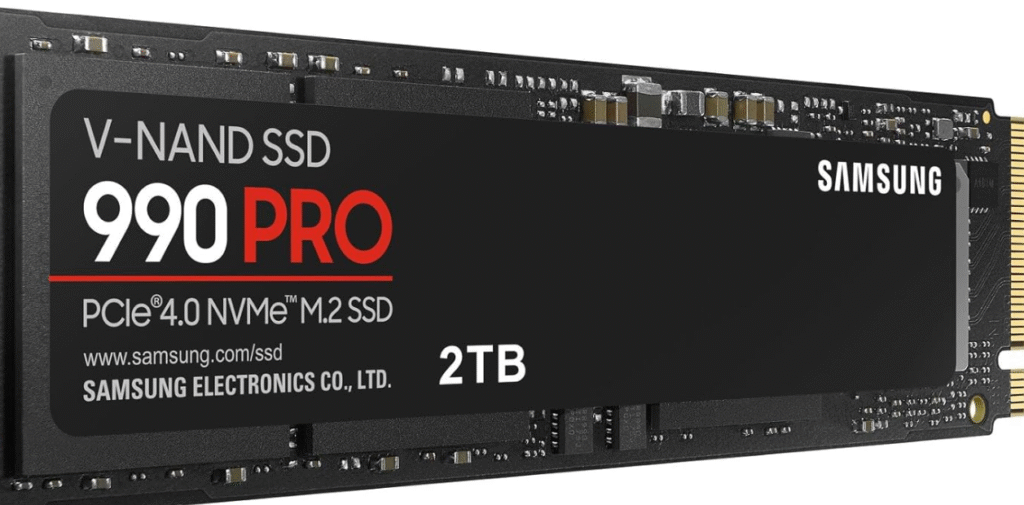
SSD, at least 512GB; ideally 1TB
Solid State Devices (SSD) offer rapid data retrieval and improved system responsiveness, crucial for loading and saving high-volume CBCT and STL files. Fast SSDs help rapidly load, process, and save large imaging datasets. This reduces user-side errors related to incomplete data loading or file corruption during save operations.
Solid-State Drives (SSDs) significantly improve the performance of dental software compared to traditional Hard Disk Drives (HDDs) by providing much faster data access speeds. Dental imaging and implant planning software frequently deals with large files such as CBCT scans and 3D models, which need to be loaded, saved, and processed quickly.
SSDs excel at rapidly reading and writing these large datasets, reducing software loading times, minimizing delays during data transfer, and enabling smoother real-time manipulation of images and models. An example showcasing the speed difference is that a typical SSD can offer read and write speeds ranging from 500 MB/s up to 3,500 MB/s or more, while a standard HDD usually delivers only about 30–150 MB/s; this means SSDs can be roughly 5 to 20 times faster than HDDs, greatly enhancing file loading and data processing times in dental software.
Replacing an old HDD in a laptop with an SSD often results in a noticeable boost in overall system responsiveness and software functionality, even if the RAM remains unchanged.
This is because the slower data access and mechanical latency of HDDs can bottleneck performance, causing delays and stuttering while handling large files. With SSDs, the faster boot times and near-instantaneous data retrieval help dental professionals work more efficiently and reduce downtime, making the same laptop much more capable for demanding dental applications without requiring immediate RAM upgrades.
Graphics Card:
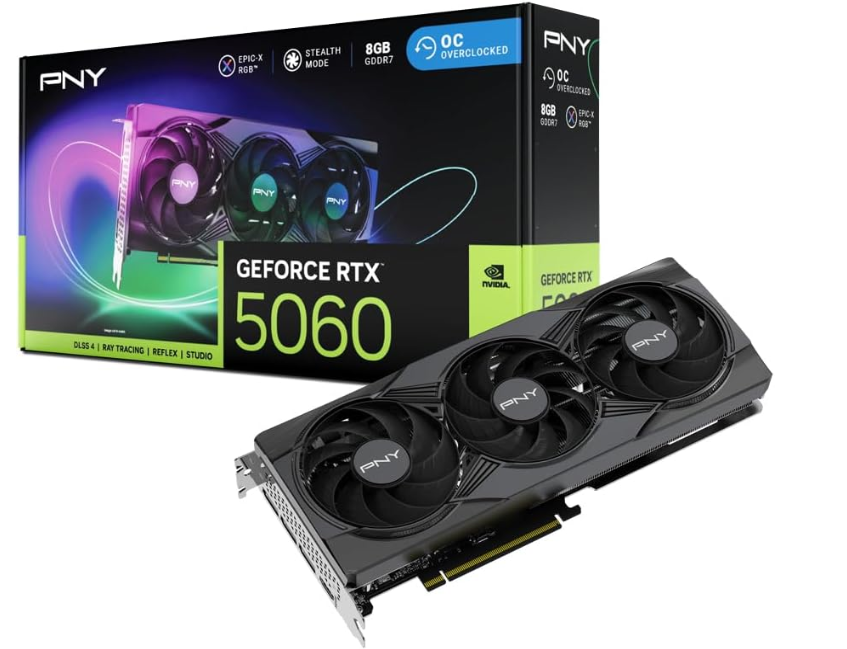
Dedicated NVIDIA GeForce RTX series (e.g., RTX 3070 or higher, with at least 8GB VRAM)
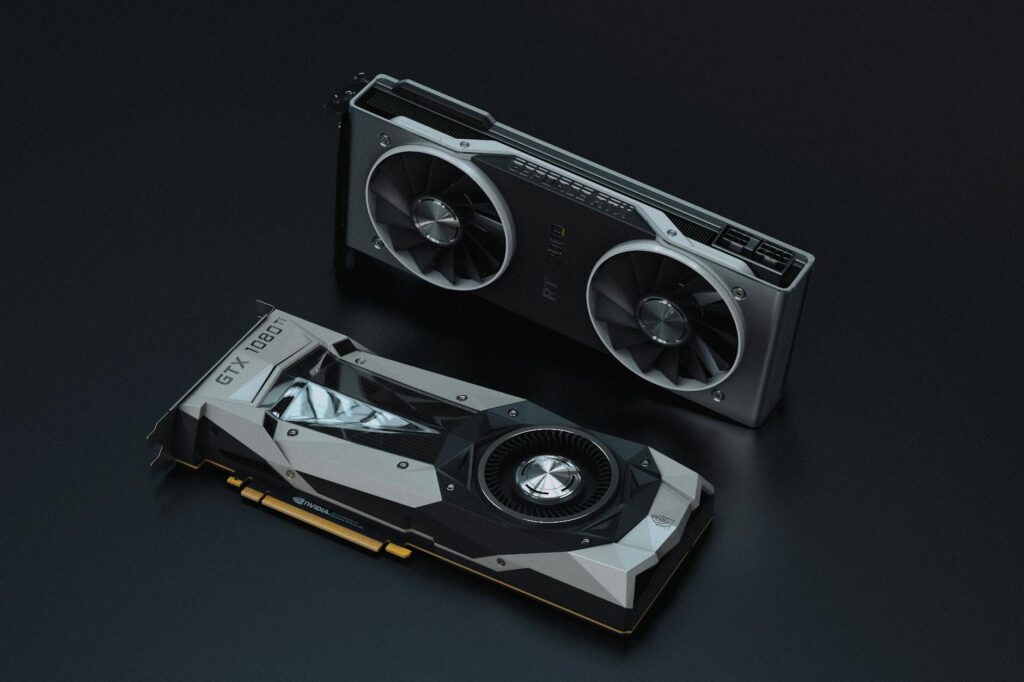
A powerful GPU dramatically improves real-time rendering and 3D segmentation capabilities. GeForce cards provide CUDA support, accelerating AI-based workflows (vital for segmentation of maxilla and mandible).
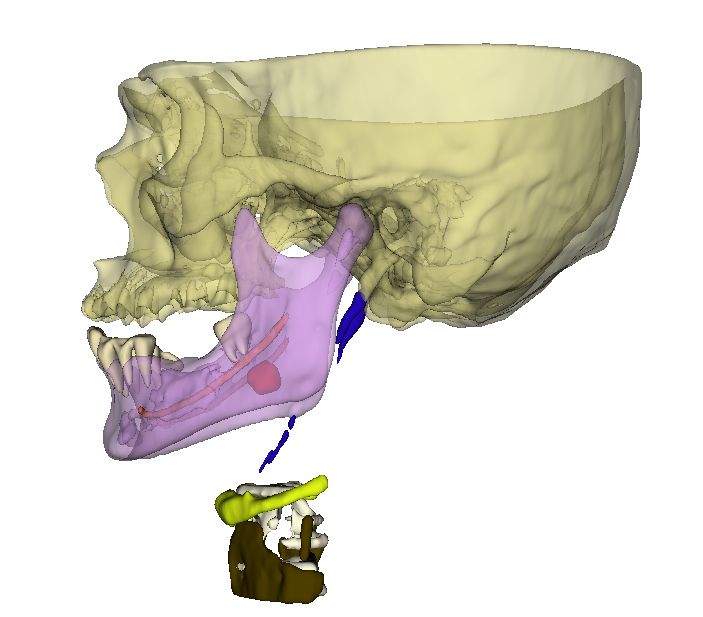
Advanced graphics cards power smoother, high-fidelity 3D rendering and AI-driven segmentation of the mandible, maxilla, and nerve canals. Software that utilizes GPU acceleration can provide finer, more detailed models for planning, improving the surgeon’s ability to visualize and plan accurately. In practice, this means less risk of missing key anatomic details.
The latest NVIDIA graphics cards ideal for dental software come from the GeForce RTX 50 Series, powered by the advanced Blackwell architecture. Models like the RTX 5070 Ti and higher offer exceptional AI-enhanced performance, real-time ray tracing, and high-speed CUDA core processing, which are crucial for demanding tasks like 3D rendering and automated segmentation in dental implant workflows.
These GPUs feature powerful CUDA profiles enabling dental implant planning software to leverage parallel processing power for complex anatomical segmentation from CBCT scans, drastically speeding up AI-driven workflows. The inclusion of Tensor Cores and RT Cores further accelerates deep learning-based segmentation tasks and photorealistic visualization, making these GPUs highly suitable for precision-driven dental imaging and implant planning.
Display:
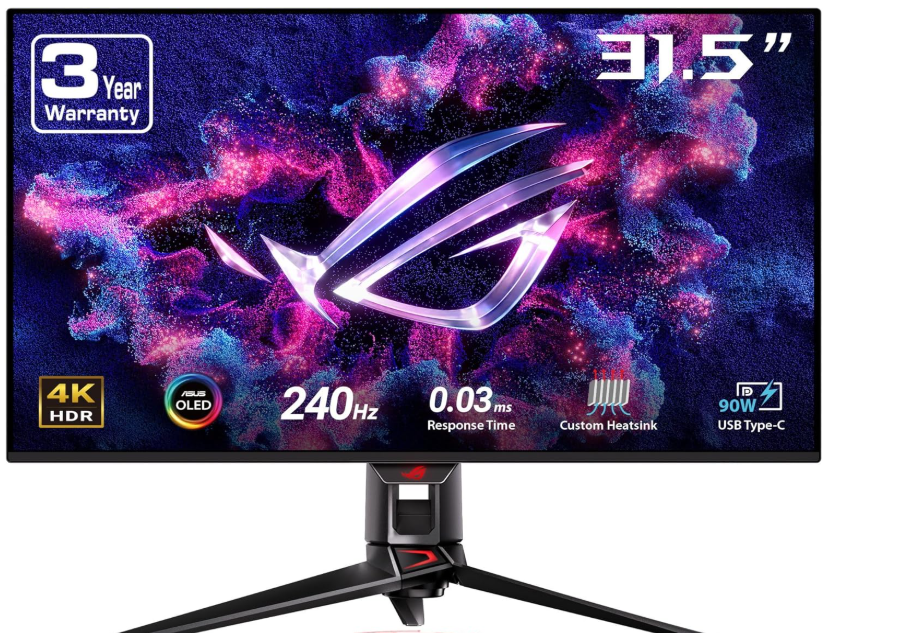
Full HD (1920×1080) or higher, IPS panel for color accuracy and wide viewing angles. High-resolution IPS or 4K screens allow for better visualization of subtle anatomical structures, supporting more precise planning decisions.
Better display monitors significantly enhance visualization and planning in dental software by providing clearer, more accurate, and detailed images essential for tasks like segmentation, implant planning, and 3D model rendering. High-resolution monitors—preferably Full HD (1920×1080) or 4K—offer greater pixel density, allowing clinicians to discern fine anatomical details such as nerve canals, bone boundaries, and subtle tissue variations that are crucial for precise segmentation and implant positioning.
Additionally, IPS panels with wider color gamut and better color accuracy ensure that the visual representation of tissues and materials is true to life, reducing the risk of misinterpretation caused by color distortion. Larger screen sizes and high refresh rates also contribute to a more comfortable and immersive workflow, enabling better manipulation of 3D models and real-time adjustments, which ultimately leads to more predictable and accurate treatment planning outcomes.
Connectivity:
Multiple USB 3.0 ports plays a crucial role in dental software workflows by enabling significantly faster data transfer speeds compared to previous USB standards, which is vital when handling large files like CBCT scans and 3D models. This enhanced speed reduces waiting times for importing and exporting patient data, improving clinical efficiency and minimizing workflow interruptions.
In terms of performance, USB 3.0 supports theoretical transfer speeds of up to 5 Gbps (approximately 625 MB/s), whereas USB 2.0—the default or earlier standard—offers speeds up to only 480 Mbps (about 60 MB/s). This means USB 3.0 can be roughly 8 to 10 times faster than USB 2.0, allowing for near-instantaneous file transfers crucial in digital implantology, where large image files need to be moved quickly between scanners, computers, and storage devices. This rapid data handling aligns perfectly with the demands of modern dental imaging and implant planning software.
HDMI output is important in dental monitors because it provides a high-quality, reliable connection to transmit both video and audio signals from computers to display screens, ensuring that dental professionals see crisp, clear images essential for accurate implant planning and segmentation. HDMI supports high-resolution displays, including Full HD and 4K, which are critical for visualizing fine anatomical details in dental imaging.
Operating System:
Most implant planning software are compatible with windows 11. It offers several improvements over earlier versions of Windows that enhance its handling of 3D graphics-driven software, making it a better choice for running demanding dental imaging and implant planning applications.
Firstly, Windows 11 features improved support for modern GPUs and graphics APIs like DirectX 12 Ultimate, which enables more efficient rendering, better hardware acceleration, and superior support for ray tracing and AI-powered graphics—critical for advanced 3D visualization and segmentation tasks.
The operating system also introduces updated scheduling and resource management that optimizes CPU and GPU utilization, reducing latency and improving multitasking during heavy 3D workloads. Additionally, Windows 11 provides enhanced security features and a more stable environment that minimizes crashes and compatibility issues common with older OS versions.
Windows is generally considered superior to macOS in multi-program support due to its broader compatibility with a wide range of software, especially in professional and specialized fields like dental imaging and implant planning. Windows supports a larger ecosystem of third-party applications, including many industry-specific and legacy programs that may not be available or fully optimized on Mac systems.
Battery Life & Portability:
Lightweight chassis, long battery runtime (important for mobility between operatories and presentations). But remember, these softwares are Graphic intensive programs, hence demand a greater energy and hence its advisable to use laptops with charging “on”, while using these softwares.
Underpowered systems can cause system crashes, freezing, or lag during critical planning steps. These software interruptions can lead to mistakes, incomplete plans, or corrupted guide designs—all factors that can indirectly affect surgical accuracy.
While both desktop computers and laptops have their pros and cons regarding battery life and portability, desktops generally offer a more stable environment with significantly higher sustained performance and faster processing speeds. This is mainly due to larger cooling systems and the ability to house more powerful hardware without the constraints of mobility.
Laptops, though portable and convenient, often reduce performance during graphics-intensive tasks to manage heat and power consumption.
Therefore, it is wise to keep laptops plugged in during demanding dental imaging or implant planning sessions and ensure they operate in well-ventilated, aerated environments to prevent thermal throttling and maintain optimal performance.
Why is this configuration so important to run the softwares?
Here are the real time examples.
Example 1: Blue Sky Plan—A Streamlined Single Implant Workflow
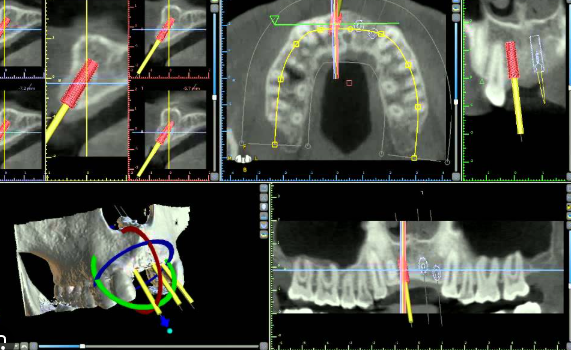
Scenario: Dr. Sharma receives a patient’s CBCT DICOM files and dental model scan. She uses Blue Sky Plan to perform a virtual implant planning session:
- Importing Data: Dr. Sharma inputs heavy DICOM and STL datasets into Blue Sky Plan. Fast SSD storage on her laptop ensures all files load almost instantly.
- Segmentation: Software auto-detects and highlights the vital nerve location. For this, an NVIDIA RTX graphics card with a CUDA-enabled profile accelerates rendering and AI-driven segmentation—essential for safely delineating the inferior alveolar nerve.
- 3D Visualization: Dr. Sharma manipulates the maxilla and mandible models in real time, adjusting implant position with no lag, thanks to at least 16GB RAM and dedicated GPU.
- Guide Design: She virtually designs a surgical guide. Computation-heavy processes like Boolean operations & guide export are finished in seconds, not minutes.
- Export & Manufacture: The finished .STL file is sent to a 3D printer.
A slow processor or hard disk would make each step sluggish, possibly risking errors or consuming valuable chairside time.
Example 2: 3Shape Implant Studio—Full Mouth Digital Workflow
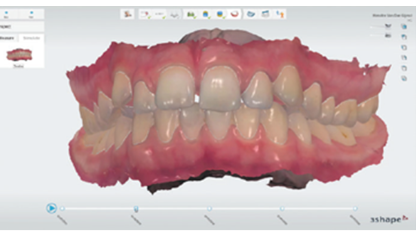
Scenario: Dr. Lee is planning an immediate loading full-arch prosthesis using 3Shape Implant Studio:
- Digital Impression Acquisition: High-resolution intraoral scans are transferred to the planning laptop. Only a machine with an SSD and USB 3.0 can transfer and open huge image files quickly.
- Prosthetic-Driven Planning: Utilizing powerful RTX graphics and a 4K display, Dr. Lee seamlessly overlays virtual crowns and accurately aligns them with CBCT data.
- Complex Segmentation: For segmenting remaining teeth and jawbones, CUDA acceleration from the graphics card ensures smooth rendering of even full-mouth datasets.
- Collaboration: Through cloud-based synchronization, his high-spec laptop helps him share plans with the lab, reducing lag in uploads and downloads.
- Immediate Surgery: Dr. Lee exports surgical guide files, prints them, and proceeds with immediate loading—all within a single seamless workflow.
Ideal Laptop Configuration for Implant Planning
| Component | Recommended Specification | Why It’s Needed (With Example) |
|---|---|---|
| Processor | Intel i7/Ryzen 7 or above | Quick loading/exporting of large DICOM/STL files |
| RAM | 16–32GB | Smooth multitasking & 3D visualization of multiple jaws |
| Storage | NVMe SSD (at least 512GB, ideally 1TB) | Near-instant dataset and software loading |
| Graphics Card | NVIDIA RTX series, CUDA-enabled (e.g., RTX 3070 or above, 8GB+ VRAM) | Faster segmentation/model rendering, AI-accelerated workflows |
| Display | Full HD/4K, IPS panel, 15–17 inches | Clear, accurate rendering of patient anatomy |
| Ports | Multiple USB 3.0, HDMI, SD Card | Immediate data import/export, multi-device connectivity |
| Operating System | Windows 10/11 (64-bit, as per most dental software requirements) | Maximum compatibility (e.g., Blue Sky Plan, 3Shape, exocad) |
Best Laptop configurations recommended
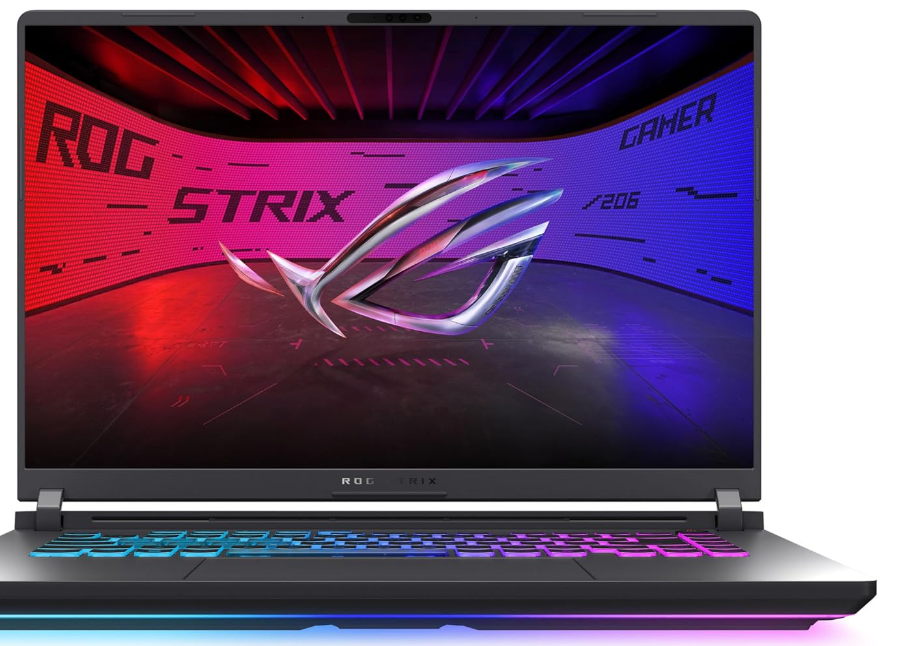
Desktop vs. Laptop:
| Feature | Laptop (Ideal Spec) | Desktop (Equivalent Spec) |
|---|---|---|
| Mobility | Clinic, OR, or home—in your bag | Fixed in surgery or lab |
| Upgradeable | Limited (some RAM/SSD only) | Fully upgradeable (CPU/GPU/RAM etc) |
| Display Size | Up to 17” (larger = less mobile) | Large, multi-monitor setups possible |
| Thermal Mgmt | Lower sustained performance due to size constraints | Superior, runs faster for longer |
Today’s high-end laptops can handle all but the most complex or multi-case workflows. Still, for extremely heavy volume or when routinely planning full-arch digital cases, a desktop with top-tier cooling and graphics offers an edge.
Conclusion:
Good hardware does not make the surgical outcome more accurate—but prevents technical interruptions and enables safer, more reliable, detailed planning.
For best clinical results, combine top-quality imaging/scanning with a powerful, stable, up-to-date laptop or desktop.

With over a decade of experience in dentistry, I specialize in diagnosing a wide range of oral diseases and have developed a deep passion for dental imaging. My interest in CBCT reporting and digital implantology led me to become a pioneer in the concept of diagnostic 3D modelling. Throughout my career, I have supported and educated numerous dentists in mastering CBCT interpretation, virtual implant planning, and the latest advancements in 3D printing for dental applications. Read more about me on the “about me” page.
- Steiner’s Analysis – Free online Cephalometry - November 23, 2025
- A Complete guide to Grayscale values in CT & CBCT - November 15, 2025
- Struggling to get your old PC to run new Radiology software smoothly? Here’s a trick with SSD that might save you. - November 14, 2025